
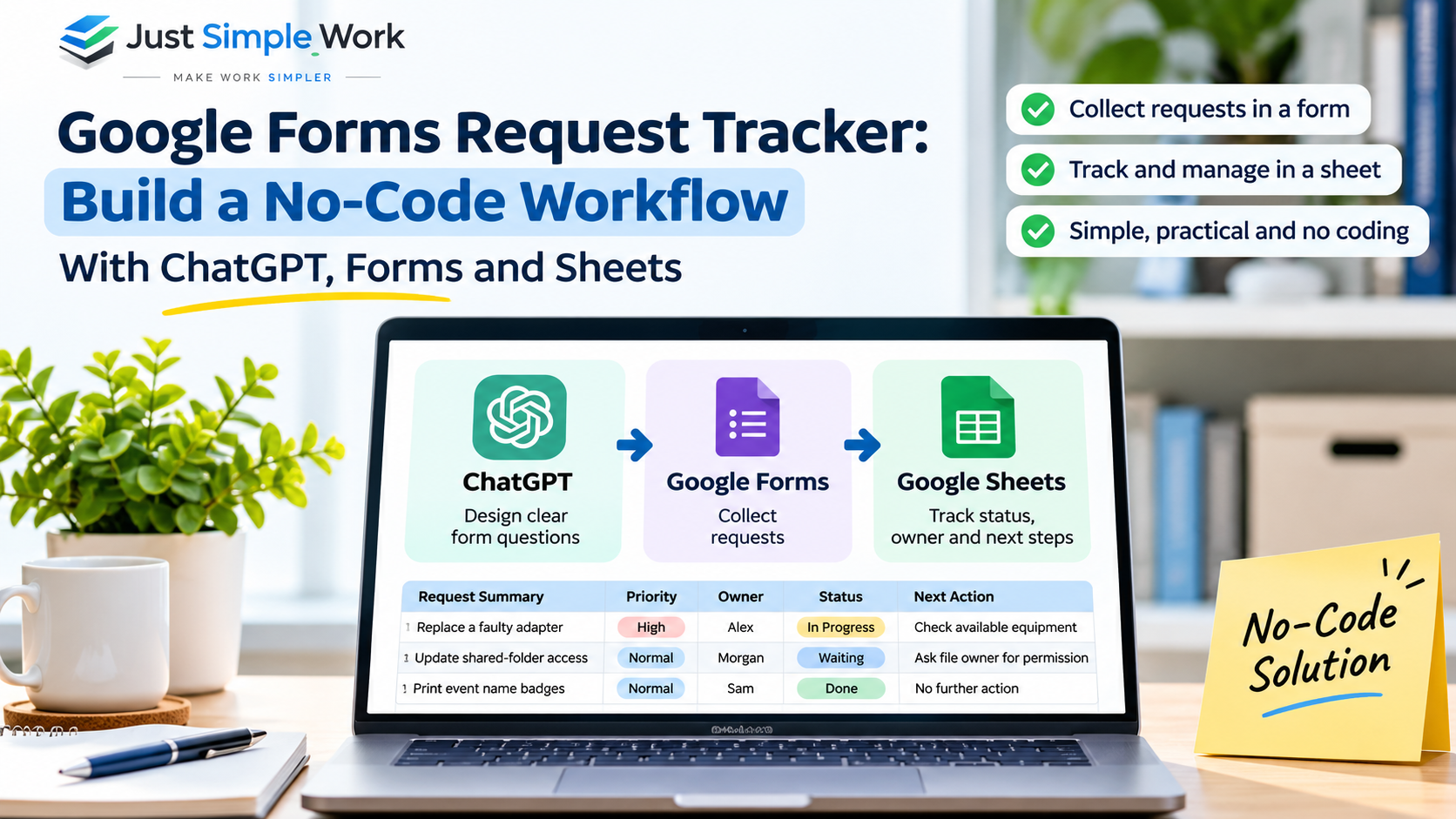
A Google Forms request tracker is a simple way to collect requests in one place and manage what happens next. ChatGPT can help you draft the form questions; Google Forms captures submissions; Google Sheets records them automatically. You then add an owner, status and follow-up date so every request has a visible next step. No coding, paid automation platform or AI integration is required.
This tutorial builds a small, working system for an office, volunteer group or shared project. The automatic part is collecting responses—assignments and decisions remain human responsibilities.
What you will build (and what is actually automated)
| Tool | Purpose | Automatic or manual? |
|---|---|---|
| ChatGPT | Suggest clear questions, wording and review prompts | Manual copy-and-paste; it does not create the form in this guide |
| Google Forms | Collect consistent requests and timestamps | Automatic when someone submits |
| Google Sheets | Store the linked response table | New form responses appear automatically |
| Request owner | Assign responsibility, update status and follow up | Manual, with simple formulas highlighting what needs attention |
For this example, imagine a small group that receives equipment, access and event-support requests. The exact same structure works for household maintenance requests, a school club or an internal team—provided you follow the relevant privacy rules.
Step 1: Ask ChatGPT to design a short intake form
Start with the problem, not a long list of fields. A useful request should tell the recipient what is needed, how urgent the requester believes it is and how to contact them. Avoid collecting unnecessary private information.
Copy the following prompt into ChatGPT:
“Help me design a simple Google Forms request intake form for a small team. We receive equipment, access and event-support requests. Suggest exactly six questions in this order: Request type, Request summary, Details, Priority, Needed by, Contact email. For each, specify the Google Forms question type and whether it should be required. Use only Normal and High for priority. Keep wording understandable to someone who has never used our system. Do not include sensitive personal data or promise automatic approval.”
Review the proposed wording rather than accepting it blindly. In particular, “High” is a requester’s priority suggestion, not an approved service-level commitment. ChatGPT is helping with content design; you still create the form inside Google Forms.
Step 2: Create the request form in Google Forms
Open Google Forms, choose Blank form and name it Simple Request Intake. Add these questions in this exact order so the spreadsheet columns used later match the tutorial.
| Question | Type | Required? |
|---|---|---|
| Request type | Dropdown: Equipment, Access, Event, Other | Yes |
| Request summary | Short answer | Yes |
| Details | Paragraph | Yes |
| Priority | Dropdown: Normal, High | Yes |
| Needed by | Date | No |
| Contact email | Short answer | Yes |
A useful description at the top is: “Tell us what you need. Submitting a request does not mean it has been approved. We will review it and contact you if more information is required.” If you use a contact-email field, avoid collecting email addresses elsewhere unnecessarily. You can set question validation or use Google Forms’ email-collection options where appropriate for your audience.
Before sharing, review the Settings for who may respond, whether people must sign in and whether response editing is allowed. Do not enable a public results summary for a request form containing contact details: Google’s sharing guidance explains how responder access and results work.
Step 3: Link Google Forms to a response spreadsheet
- Open the form’s Responses tab.
- Choose Link to Sheets, or the menu option to select a response destination.
- Select Create a new spreadsheet and give it a meaningful name, such as Request Tracker — Responses.
- Open the linked Google Sheet. Google Forms will append future submissions there.
Google documents this built-in connection in its response destination instructions. You do not need Zapier, Apps Script or a third-party integration to move new form responses to the sheet.
Submit one fictional request yourself so you can see the column layout. With the six questions above and no additional form questions, the response sheet normally contains:
| Column | Heading |
|---|---|
| A | Timestamp |
| B | Request type |
| C | Request summary |
| D | Details |
| E | Priority |
| F | Needed by |
| G | Contact email |
If Google Sheets labels your tab differently from Form Responses 1, use its actual tab name in the formulas below. Adding an automatic email-collection field or rearranging questions can change column positions; follow your real headers instead of assuming this example is universal.
Step 4: Add a no-code ownership and status workflow
In the linked response tab, add four headings immediately after the form-owned columns:
| Column | Heading | Who updates it? |
|---|---|---|
| H | Owner | Person coordinating the work |
| I | Status | Owner or designated reviewer |
| J | Next action | Owner |
| K | Review date | Owner |
Select I2:I, then choose Data → Data validation → Add rule. Set a dropdown with four options: New, In Progress, Waiting and Done. Google’s dropdown instructions cover this menu. Format column K as a date.
Now consider three fictional requests. The information submitted through the form stays in columns A–G; the responsible person fills the management fields:
| Request summary | Priority | Owner | Status | Next action |
|---|---|---|---|---|
| Replace a faulty presentation adapter | High | Alex | In Progress | Check available equipment |
| Update shared-folder access | Normal | Morgan | Waiting | Ask file owner for permission |
| Print event name badges | Normal | Sam | Done | No further action |
Important: Do not casually sort, insert or delete rows in the linked response sheet. Manually maintained owner/status values need to stay aligned with the original submissions. For more complicated workflows, use a dedicated tracking tool or a separately designed system with stable request IDs.
Step 5: Add a small Google Sheets summary with formulas
Create a new tab named Summary. In column A, enter the labels below; in column B, enter the matching formula. These examples assume your form response tab is named Form Responses 1.
| Summary label | Google Sheets formula |
|---|---|
| Not yet reviewed | =COUNTIFS('Form Responses 1'!A2:A,"<>",'Form Responses 1'!I2:I,"") |
| Waiting for someone | =COUNTIF('Form Responses 1'!I2:I,"Waiting") |
| Past requested date, not done | =COUNTIFS('Form Responses 1'!F2:F,">0",'Form Responses 1'!F2:F,"<"&TODAY(),'Form Responses 1'!I2:I,"<>Done") |
| Review date reached, not done | =COUNTIFS('Form Responses 1'!K2:K,">0",'Form Responses 1'!K2:K,"<="&TODAY(),'Form Responses 1'!I2:I,"<>Done") |
These formulas calculate from live response and status cells; they do not send alerts or assign owners. The “Past requested date” figure refers to what the requester entered in Needed by—not a deadline your team necessarily accepted. If dates were entered as text, or if a spreadsheet uses a different locale and formula separator, correct the cells or syntax before relying on the totals.
You can also use a filter on the response tab to show requests marked Waiting or In Progress. Avoid sorting the raw response rows if the management columns were manually attached to row positions.
Worked example: four complete requests, from form submission to follow-up
Here is a fictional demonstration dataset, prepared to show what your completed tracker should contain. It is not a screenshot or export from a live Google Forms run. Columns A–G are submitted answers; columns H–K are filled in by a human request owner.
To reproduce the example, create the six-question form and the four management columns described above. Copy the tab-separated data below into a separate practice spreadsheet, or submit the fictional requests in a demo form and enter H–K yourself. If you paste the whole dataset, paste it into cell A1 of an empty practice sheet, not over a live response destination. Make sure the timestamp and date columns are actual date/time values in your Sheet’s locale.
Copy example A:K data (TSV; four fictional requests)
Timestamp	Request type	Request summary	Details	Priority	Needed by	Contact email	Owner	Status	Next action	Review date
2026-11-02 09:00	Equipment	Replace a faulty presentation adapter	Display connection is intermittent	High	2026-11-05	[email protected]	Alex	In Progress	Check available equipment	2026-11-06
2026-11-03 10:15	Access	Update shared-folder access	Need edit access to the team folder	Normal	2026-11-10	[email protected]	Morgan	Waiting	Ask folder owner for permission	2026-11-07
2026-11-04 14:30	Event	Print event name badges	Print 12 name badges	Normal	2026-11-05	[email protected]	Sam	Done	No further action	2026-11-05
2026-11-05 11:00	Other	Prepare room signage	A4 room labels needed	Normal	2026-11-06	[email protected]
Expected Summary result for a fixed review date
For a reproducible check, enter 2026-11-06 as a real date in Summary!E1. The existing production formulas that use TODAY() update automatically every day; the fixed-date versions below are for checking this example only.
| Summary metric | Expected value | Reason |
|---|---|---|
| Not yet reviewed | 1 | Room signage has no status |
| Waiting for someone | 1 | Shared-folder access is Waiting |
| Past requested date, not done | 1 | Adapter requested for November 5, still In Progress |
| Review date reached, not done | 1 | Adapter review date is November 6 |
With the practice tab named Form Responses 1, the four matching formulas are:
=COUNTIFS('Form Responses 1'!A2:A,"<>",'Form Responses 1'!I2:I,"")
=COUNTIF('Form Responses 1'!I2:I,"Waiting")
=COUNTIFS('Form Responses 1'!F2:F,">0",'Form Responses 1'!F2:F,"<"&$E$1,'Form Responses 1'!I2:I,"<>Done")
=COUNTIFS('Form Responses 1'!K2:K,">0",'Form Responses 1'!K2:K,"<="&$E$1,'Form Responses 1'!I2:I,"<>Done")
Important: “Needed by” is a requester’s preferred date, not a team-approved deadline. The example illustrates the arithmetic and human ownership model; it does not promise automatic assignments, notifications to owners or approvals.
Step 6: Turn on form notifications—but keep responsibility clear
Google Forms can email the form owner when new responses arrive. Open Responses → More and choose Get email notifications for new responses; Google’s response management guide documents the setting.
An email notification is not the same as assigning a request. Decide who checks the tracker, who covers absences and how often overdue items are reviewed. For a tiny group, one person can check the Summary tab each working day. A larger group may need stronger access control, reminders and approval routing.
Google Forms does not automatically approve requests, choose an authorized owner or send the final completion message in this no-code setup. Those steps require a human process or additional automation. This boundary is especially important for financial, HR, access-control or other sensitive requests.
Step 7: Use ChatGPT to draft a weekly update, not invent decisions
After a week, you can ask ChatGPT to turn anonymized tracker information into a short update. Do not paste private emails, confidential request descriptions or sensitive identifiers into an unapproved AI service.
“Turn the following anonymized request-tracker rows into a short weekly update. Include: completed items, work in progress, items waiting on another person and requests needing review. Use only the supplied rows. Do not invent an owner, approval, due date or completed action. For missing information, write ‘Not recorded’. End with a three-line follow-up checklist.”
Check every line against the spreadsheet before sharing. The tracker is the source of record; the AI-generated summary is a draft for human review. For more prompt techniques, see our practical AI workflow guides.
Common questions about this no-code request tracker
Can people submit requests without seeing the spreadsheet?
Yes. Share the form’s responder link, not the linked Sheet. Keep spreadsheet access restricted to people who need to manage requests. Review form settings before publishing.
Will the tracker automatically email the assigned person?
No. The built-in new-response notification alerts the form owner when enabled. Sending customized assignments or escalations requires an additional workflow and appropriate permissions.
Can this replace a formal approvals system?
Not when decisions need audit trails, enforceable permissions or regulated approvals. This tutorial creates a lightweight intake and follow-up system, not a security-controlled approval application.
What if the team needs Excel-based logs instead?
Start with the format your group will maintain. Google Forms is useful for collecting requests; for prebuilt Excel actions, decisions, exceptions, changes, follow-ups and handovers, explore our Office Control Logs & Trackers Kit. That separate workbook is not a Google Forms integration.
Why is my request status attached to the wrong form response after sorting?
The Owner, Status and Review date columns in this basic tracker are entered manually beside form submissions. If you rearrange only some columns or rows, those manual values can become associated with the wrong request. Avoid sorting or editing the live response range casually; use filters or a separate tracker with stable request IDs if your team needs more complex sorting.
Can I check the dashboard against a fixed date instead of today?
Yes. Enter a genuine date in a cell such as Summary!E1 and refer to $E$1 in the two date-based formulas instead of TODAY(). This makes a fictional practice example reproducible. For day-to-day operations, the existing TODAY() formulas show the current date.
Does past-due in this tracker mean an approved service-level deadline was missed?
No. The formula compares the date a requester entered in Needed by against the review date. It does not show that anyone accepted the target date, approved the request or agreed to a service-level commitment.
Your next step
Build the six-question form, link it to Google Sheets and add Owner, Status, Next action and Review date. The essential result is not a complicated dashboard: it is a shared understanding of what came in, who is responsible and what still needs attention. Browse more projects in Practical AI, Automation & Digital DIY, or find other step-by-step guides on our Blog.