

Wondering how to schedule a WhatsApp group event? Use a Poll to choose a time, create an Event to confirm the plan, and use RSVPs and reminders to keep people informed. This three-step method works for weekend meetups, family gatherings, study groups, and small team activities. The key distinction: a poll vote shows availability; an RSVP confirms attendance.
Instead of negotiating across dozens of messages, give everyone two separate deadlines: one for choosing a time and another for confirming whether they are coming. We call this the Poll → Confirm → Remind Workflow.
How to Schedule a WhatsApp Group Event: Quick Answer
- Poll: Open the group, choose the add or attachment menu, select Poll, and offer a few realistic time slots. Ask people to select every time they can attend.
- Confirm: Review the result, choose a final slot, then create a WhatsApp Event with the date, start time, location, and any instructions.
- Remind: Ask people to respond Going, Maybe, or Not going. Check the responses, set available reminders, and send a short final update.
A Poll helps the group decide; an Event records the agreed arrangement. Do not treat the number of poll votes as your final headcount. WhatsApp documents both group polls and chat events in its Help Center.
Step 1: Create a WhatsApp Poll to Find the Best Time
Open the group chat. On most mobile versions, tap the plus or attachment button and choose Poll; on desktop, use the relevant attachment menu. Enter one question, such as “Which meetup times can you make?” and list up to 12 options.
- Offer three or four specific slots rather than vague choices such as “Saturday afternoon.”
- Leave Allow multiple answers enabled so members can select every slot that works for them. Turn it off only when you want a single preference.
- If your version offers a voting end time, set it to your actual decision deadline. Otherwise, state the deadline in the poll question or a separate message.
- If you need to identify available people, do not enable Hide voter names. That option is better for anonymous preferences, not attendance planning.
- Send the poll, then use View votes to compare options when the deadline arrives.
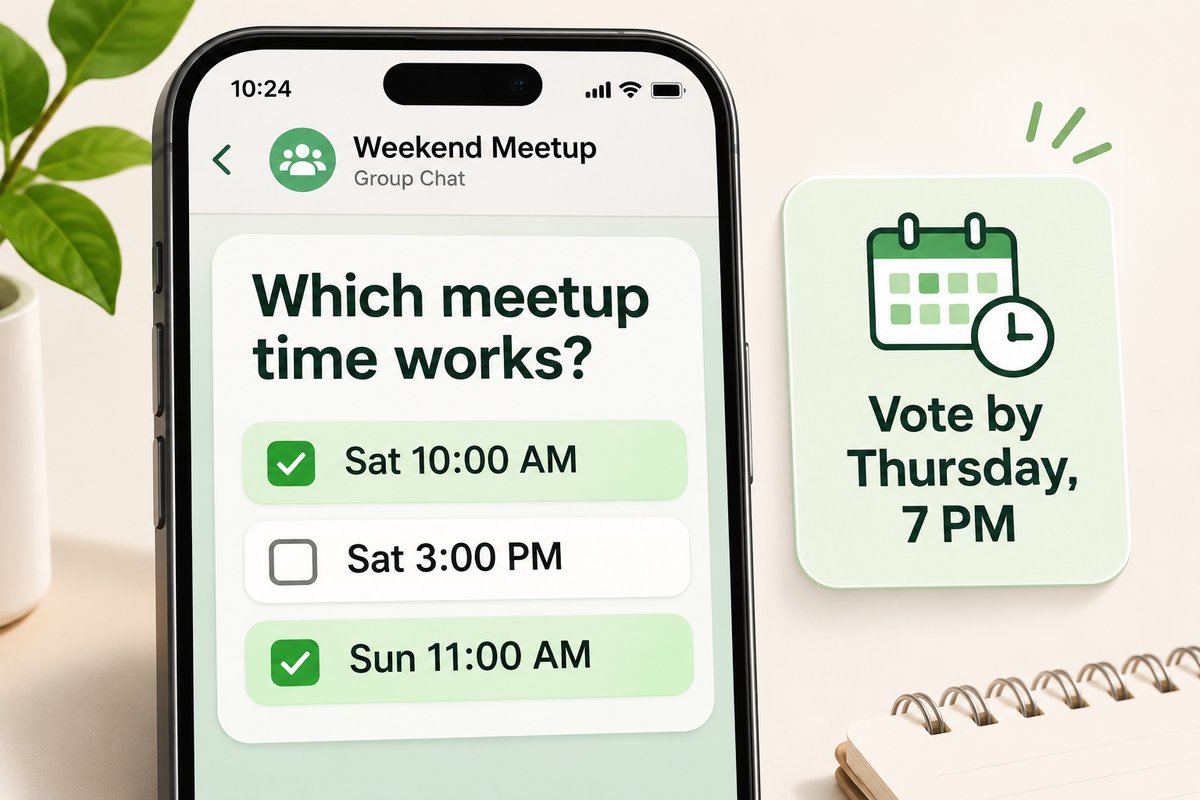
Small tip: Include the time zone if your group spans different locations. “Saturday 3:00 p.m. ET” prevents a popular vote for the wrong hour. Also choose a decision owner before you start: the highest vote count may not work if an essential attendee cannot make it.
WhatsApp’s August 2026 poll enhancements added voting deadlines, optional hidden voter names, and a 15-minute window to edit a poll question. These options may vary by device or rollout; poll settings cannot simply be changed after creation. See WhatsApp’s August 4 announcement.
Step 2: Create a WhatsApp Event After Choosing the Time
Once the group has chosen a slot, go back to the chat, open the add or attachment menu, and select Event. Enter a descriptive title, the agreed date and start time, and any available end-time, location, or description fields. For an online gathering, add a relevant call link if your version supports it.
Use a title people can recognize later, such as “Saturday Coffee Meetup — 3 p.m.” Add practical details: the exact meeting point, whether guests should bring anything, and whom to contact if they are late. Send the Event into the conversation.
Participants can open the Event and respond Going, Maybe, or Not going; some versions also show Going with guest. Ask for an RSVP deadline even if the event itself stays visible afterward. The organizer should treat Maybe as unresolved, not as an attendee.
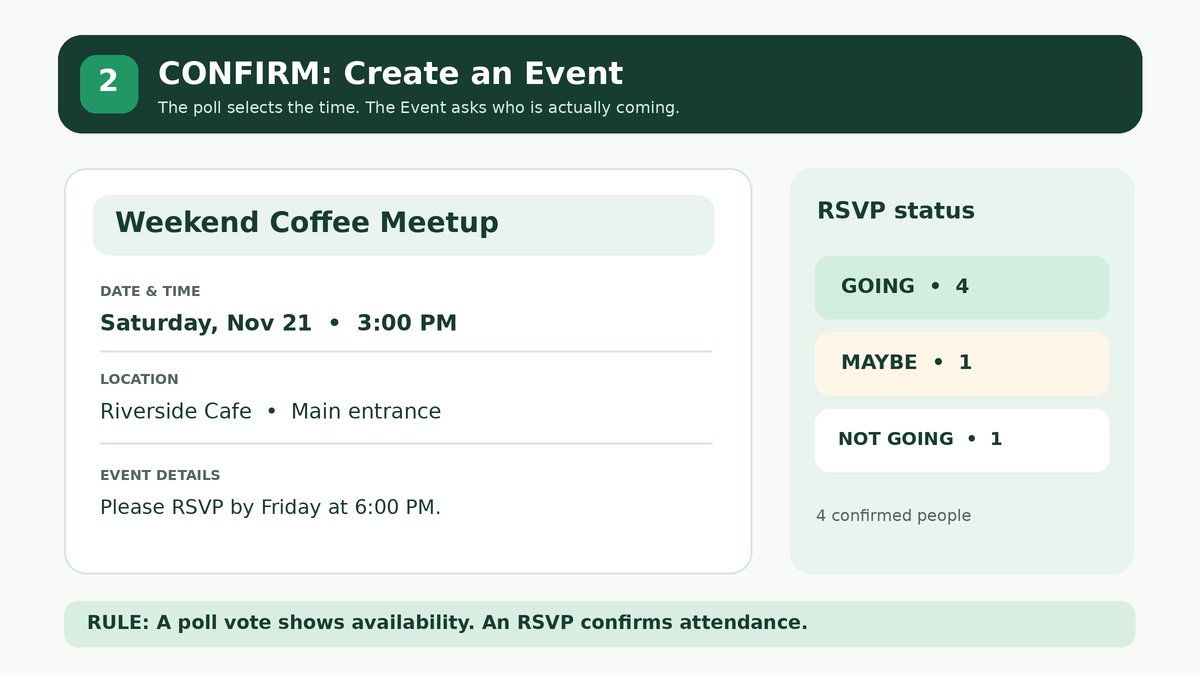
Small tip: Put the location in the Event itself, not only in a message sent 40 lines earlier. WhatsApp’s event guidance says the creator can edit details and that guests who responded Going or Maybe receive change notifications. Still, send a plain-language change notice when the adjustment affects travel plans.
Step 3: Manage RSVPs and WhatsApp Event Reminders
Check the event’s attendee responses after your stated RSVP deadline. Follow up directly with people marked Maybe only if their answer affects a reservation, carpool, or minimum group size. For cancellations, update your headcount and ask for a replacement before promising a spare spot.
WhatsApp introduced custom early event reminders on January 7, 2026. Use that option when it appears in your Event creation flow; the available choices can differ by app version. Guests who respond Going or Maybe may also receive a notification when an event begins. Do not assume every guest will see or act on a notification: a short final message remains useful. Source: WhatsApp group update.
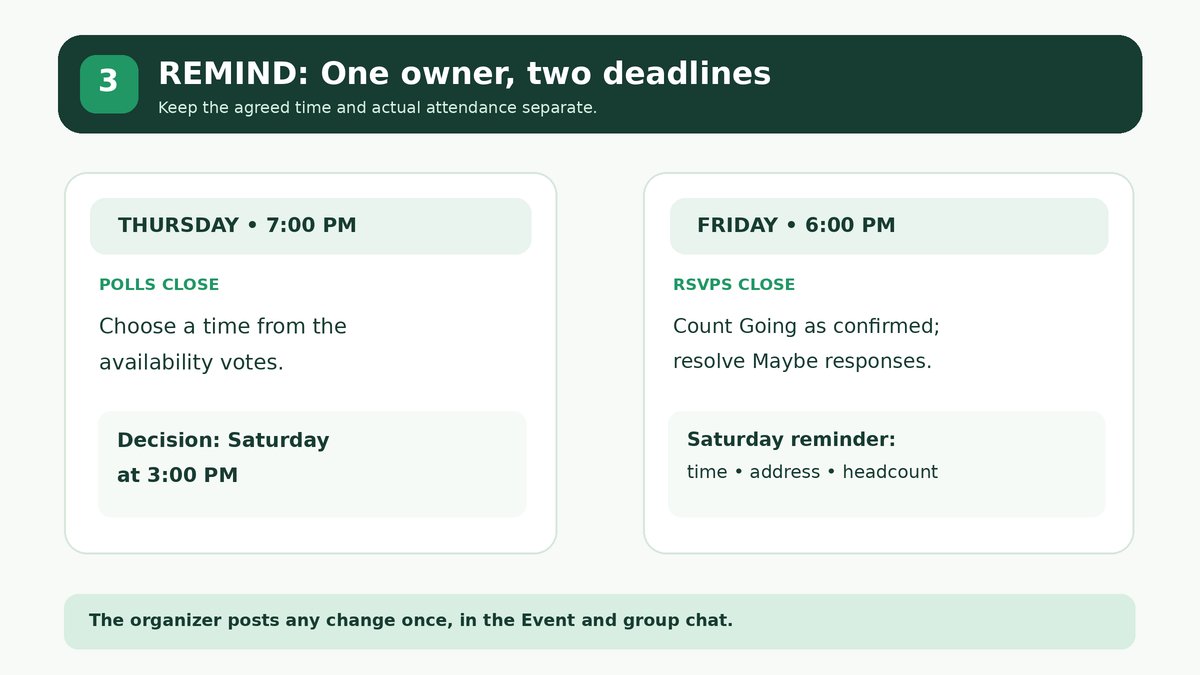
Where supported, the event creator can pin the event message for easier access; WhatsApp provides different pin durations, including an option tied to the event ending. Only the event creator can edit or cancel the chat-based Event. Assign one organizer to make changes and post the final location and headcount, rather than letting several people post competing updates.
What’s New in WhatsApp Events in 2026?
Three changes matter for group organizers. They are separate releases, and availability is not identical across all devices and accounts.
- January 7, 2026 — early reminders: WhatsApp announced custom early reminders for group-chat Events, helping guests plan travel or remember an online call. Official announcement.
- August 4, 2026 — better Polls: Poll creators gained voting end times, optional hidden voter identities, and a limited opportunity to edit the question within 15 minutes. Official announcement.
- November 5, 2026 — expanded Events: WhatsApp announced shareable invitation links, event cover images, guest RSVPs without a WhatsApp account, custom reminders, a plus-one option, and Events Home under Settings → Events for viewing past and upcoming invitations. The new experience is rolling out over the following weeks, not guaranteed to be on every account immediately. Official announcement.
Important: The older Help Center instructions for events inside an existing chat say you cannot invite someone outside that chat or forward the event elsewhere. The November announcement describes a newer, link-based event-invitation experience, including guests who do not use WhatsApp. If you cannot find a shareable event link, use your current in-chat workflow rather than assuming the new invitation feature is already enabled. WhatsApp also says unfamiliar guests do not see an event address until they RSVP in the newer invitation experience.
WhatsApp Poll vs. Event vs. Google Calendar
| Tool | Best use | Key limitation |
|---|---|---|
| WhatsApp Poll | Compare possible dates, times, or locations | Votes are not attendance confirmations |
| WhatsApp Event | Store one confirmed plan and collect RSVPs | Invitation features depend on your app’s rollout |
| Google Calendar | Plan repeating activities, invite attendees, and manage shared calendars | It does not automatically inherit WhatsApp Poll results or RSVPs |
For a one-time dinner, Poll plus Event is usually enough. For a weekly study group or recurring family activity, use a calendar for the long-term schedule and WhatsApp for conversations. Neither approach requires inventing an automatic integration between the two apps.
Complete Example: Organize a Weekend Meetup Without 50 Messages
Illustrative scenario: Six friends want coffee on the weekend of November 21–22, 2026. Instead of asking “When is everyone free?” repeatedly, Maya offers Saturday at 10:00 a.m., Saturday at 3:00 p.m., and Sunday at 11:00 a.m. All times are local to the group.
- Wednesday: Maya posts the Poll with multiple answers enabled and asks everyone to vote by Thursday, November 19, at 7:00 p.m.
- Thursday evening: Saturday at 3:00 p.m. gets five availability votes, the most of any option. Maya checks whether the sixth person is essential before deciding.
- After the vote: Maya creates “Weekend Coffee — Sat Nov 21, 3 p.m.” as an Event and adds the café address and proposed end time.
- Friday: Everyone is asked to RSVP by November 20 at 6:00 p.m. Four respond Going, one Maybe, and one Not going. Maya therefore plans around four confirmed attendees, not five poll votes.
- Saturday: Maya confirms the meeting point and any updated headcount. If a friend cancels, she asks whether anyone wants the freed spot before changing a booking.
The two deadlines are the trick: Thursday decides when; Friday decides who. The process keeps decisions visible without pretending that every person who voted will attend.
Three Copy-and-Paste WhatsApp Messages
1. Poll invitation
Trying to choose our meetup time! Please vote for ALL the slots you can make by Thursday at 7 p.m. I’ll confirm one option after voting closes.
2. Final event confirmation
We’re set for Saturday at 3 p.m. I’ve added a WhatsApp Event with the location. Please RSVP there by Friday at 6 p.m. so we have an accurate headcount.
3. Cancellation or replacement request
One place has opened up for Saturday at 3 p.m. If you’d like to join, reply by 7 p.m. tonight. I’ll update the final attendee list once confirmed.
Common WhatsApp Group Scheduling Problems
Why can’t I find the Event option?
Update WhatsApp, check the add or attachment menu, and confirm you are in the intended chat. Features and menus vary across mobile, desktop, and rollout stages. A missing Events Home or shareable link may simply mean the November update has not reached the account.
Can I change the event time?
Yes. For a chat-based Event, the creator can open the chat’s Events section, select the Event, and choose Edit event. Notify the group clearly when time or location changes.
Can I invite someone outside the group or someone without WhatsApp?
Traditional in-chat Events are limited to chat participants. The November 2026 expanded invitation system allows shareable links and, where rolled out, RSVPs from people without WhatsApp. Check which event experience your app actually offers.
Can I create recurring events or synchronize them with Google Calendar?
Do not assume WhatsApp provides a reliable repeating-event schedule or automatic Google Calendar synchronization. For repeating activities, create a recurring event in Google Calendar and use the WhatsApp group for coordination.
What happens if someone cancels?
Ask them to change their RSVP, verify the new headcount, and update any reservation or shared transportation. If you alter the Event, the original creator should make the change so everyone sees one authoritative record.
When Should You Use Google Calendar Instead?
Choose Google Calendar if your group meets every week, needs a shared view across multiple activities, or must control who can see and edit calendar information. Google documents repeating events, while WhatsApp remains useful for quick conversation and time selection.
For the permission and sharing steps, follow our guide to sharing Google Calendar with friends and family. If your group manages recurring office deadlines rather than social meetups, our recurring deadline calendar guide explains how to make responsibilities visible ahead of time.
Frequently Asked Questions
How do I schedule an event in a WhatsApp group?
Use a Poll to choose a slot, create an Event from the chat’s attachment or add menu, enter the time and details, and request RSVPs before sending a final reminder.
Can I use WhatsApp to find a meeting time?
Yes. A Poll with multiple answers enabled lets participants choose every available time. Review votes, then decide and send a separate Event.
Can I set a deadline for a WhatsApp poll?
WhatsApp announced end times for Polls in August 2026. If you do not see that control, state a clear voting deadline in the question or message.
Can WhatsApp remind people about an event?
Yes. WhatsApp announced custom early reminders for group Events in January 2026. Reminder settings and availability may differ by version.
Can someone without WhatsApp join an event?
The newer event-invitation experience announced on November 5, 2026 supports viewing an invitation and RSVPing without the app, subject to its gradual rollout. Older in-chat Events do not work that way.
Is WhatsApp better than Google Calendar for group scheduling?
WhatsApp is convenient for collecting preferences and coordinating one gathering. Google Calendar is better suited to recurring events and permission-managed shared schedules. Many groups benefit from using both.
Bottom line: Set a voting deadline, choose the time, collect actual RSVPs, and name one organizer. That is the simplest reliable way to schedule a WhatsApp group event without another endless group chat.