
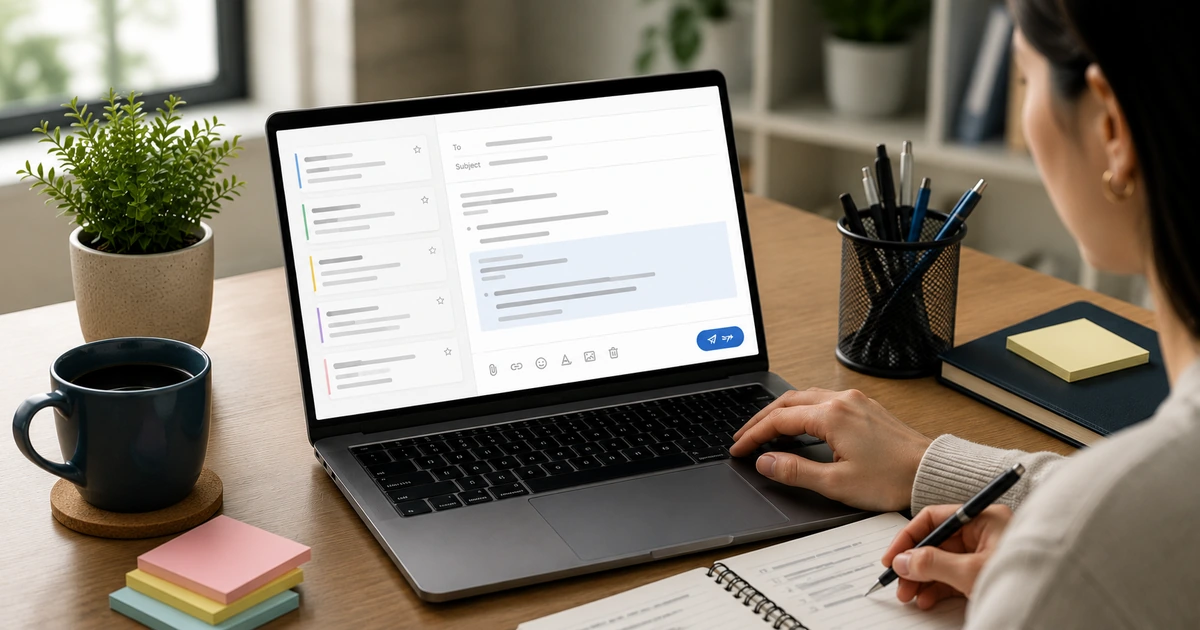
Repeated workplace replies can be easier to manage when you save a complete email template or a shorter reusable snippet.
Gmail saved templates can support recurring full-message drafts. Text-expander tools can support shorter reusable snippets in applications where the selected tool is available and configured.
Here is how to set up saved templates in Gmail and evaluate text-expander options for reusable snippets.
Use Gmail’s Saved Templates (Canned Responses)
Gmail has a built-in template system called Canned Responses. Here’s how to activate and use it.
Step 1: Enable Canned Responses
Go to Gmail Settings (the gear icon) → See all settings → Advanced → Enable Templates. Save changes.
Step 2: Create a template
Compose a new email. Write it out fully. In the bottom-right of the compose window, click the three dots (More options) → Templates → Save draft as template → Save as new template. Name it something descriptive.
Step 3: Insert templates
When you need to use one, start a new compose → three dots → Templates → Select the template you want. Gmail inserts the saved template into the draft, where it can be reviewed and edited before sending.
Name your templates for fast retrieval. Good names are specific and functional:
interview-reject-politemeeting-request-standardfollow-up-5-daysdoc-request-confirmation
Avoid generic names like “Template 1.” You won’t remember which is which under deadline pressure.
When Saved Templates Fall Short
Gmail templates work for exact, reusable messages. But real emails need customization — a name, a date, a specific context. A full template that says “Dear [Name]” still requires you to open the email, find the bracket, and type.
This is where a text expander solves the problem.
Use a Text Expander for Reusable Snippets
Some text expanders let you associate a short trigger — such as ;interview — with a reusable snippet. Placeholder and editable-field support varies by tool and configuration.
How it works:
A snippet can be defined with a shortcut and content, for example:
;interview → Dear {{name}}, Thank you for applying to the {{position}} role at {{company}}...
Some tools support placeholders or editable fields. Confirm how the selected tool handles field navigation before building a larger snippet library.
Examples to evaluate:
- Espanso
- TextExpander
- AutoKey
Before selecting a tool, confirm its operating-system, application, and security requirements.
Organize Your Snippet Library
Don’t dump everything into one list. Create categories:
- Email opens:
;interview,;followup,;thanks - Closings:
;regards,;best,;sorry - Attachments:
;docsattached,;reportlinked - Meeting:
;callrequest,;reschedule,;decline
Start with the recurring replies you use most often, organize them by purpose, and expand the library as additional patterns become clear.
When to Use a Full Template vs. a Snippet
Use a full template when the entire email structure is reusable with only minor edits — like a standard rejection, a meeting request, or a status update format.
Use a snippet when you’re writing a type of email repeatedly but the specifics vary — like interview responses, project kickoffs, or client updates where the structure is the same but names, dates, and details change.
A Practical Benefit: More Consistent Starting Points
Templates and snippets can provide a consistent starting structure for recurring messages. They can help keep common sections and required details visible while the message is being drafted.
Review each email for names, facts, dates, links, context, and tone before sending.
Stop rewriting the same workplace emails from scratch. The Office Email Templates Bundle includes 35 workplace email templates for requests, meeting requests, time-sensitive follow-ups, polite declines, status updates, handoff emails, and delicate workplace conversations. Get the free bundle — no signup required.